How to reset Visual Paradigm Subscription password
Visual Paradigm’s product subscription plan allows user to rent and use Visual Paradigm on monthly basis. By joining the subscription plan user will receive a long ID and password for online activate the software. In case you have loss your password you can reset it with the following ways. Read more
 Activity diagram is one of the behavior diagram in
  Timing diagram in
 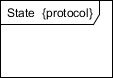 The Protocol State Machine in
  State Diagram, also call State Machine Diagram is one of the most important diagram in
 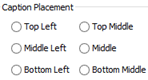 When creating diagrams sometimes you might want to have the caption not showing in the default location, i.e. to have better layout for the containing elements while not having the name being covered. In this case you may adjust the caption position to reserve space for the child elements. To do this you can specify the caption placement of the individual element via the user interface. But instead of manually specify the caption placement shape by shape, you can also do this via the Open API. In this article we will use Component as sample to demonstrate how to control its caption position with
 Deployment Diagram in