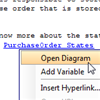
 When you are documenting your model, you may come across the situation where you want to make a reference to certain diagram in the project to help you explain an idea or to give reader supplementary information they may find useful. For example, you may want to add into the description of a class, a note to tell the developers that if they want to know more about the state change of the class, refer to certain state machine diagram. While the reference feature allows you to establish formal and contractual reference between model elements and diagrams, the reference function you can find within the description editor enables you to add diagram link into any part within a description, casually and informally. Such a diagram shortcut enables reader to jump from description to a diagram, which makes navigation much easier.
Read more


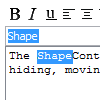 The find feature allows you to search for specific words or sentences within text in the description editor. Finding starts from the beginning of the description, regardless of the position of text cursor. The first occurrence of text that matches with the entered search text will be highlighted. You can move to the next occurrence by clicking on the Next button. You can perform finding in all the RTF description editors, such as the description editor in specification window.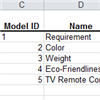
 In
In 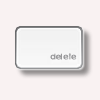 In the past, the keyboards on Mac share similar layout as the standard PC keyboard which have both backspace and delete buttons. But since it has changed to a compact keyboard (without number pad), a single delete button is used to serve both delete and backspace functions. Starting from
  When you