


Create a C4 System Context Diagram Using the Plugin API
A C4 System Context Diagram is the top-level view in the C4 Model – a lightweight, modern approach to visualizing software architecture. In Visual Paradigm, you can create this diagram directly from the diagram editor or through the Plugin API. This article explains how to generate a C4 System Context Diagram programmatically using the Plugin API.
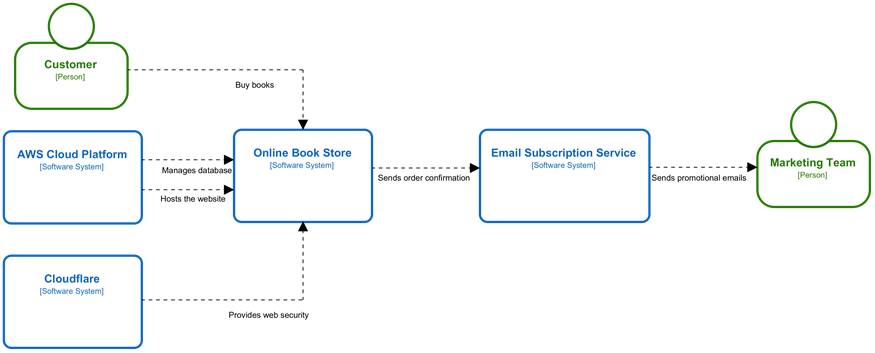
The C4 System Context Diagram will be created by the plugin
Create a Blank Diagram
Begin by using DiagramManager.createDiagram with IDiagramTypeConstants.DIAGRAM_TYPE_C4_MODEL_SYSTEM_CONTEXT_DIAGRAM as parameter to create a blank C4 System Context Diagram. This initializes the workspace where all model elements and relationships will be added.
// Create blank C4 System Context Diagram
DiagramManager diagramManager = ApplicationManager.instance().getDiagramManager();
IC4ModelSystemContextDiagramUIModel diagram = (IC4ModelSystemContextDiagramUIModel) diagramManager.createDiagram(IDiagramTypeConstants.DIAGRAM_TYPE_C4_MODEL_SYSTEM_CONTEXT_DIAGRAM);
diagram.setName("Online Book Store - System Context Diagram");
Create a C4 Person
After the diagram is created, you can create a C4 Person element using IModelElementFactory.createC4moelPerson method.
// Create C4 Person model element
IC4modelPerson customer = IModelElementFactory.instance().createC4modelPerson();
customer.setName("Customer");
Once the model element is instantiated, call DiagramManager.createDiagramElement to create its corresponding view so that it appears visually on the diagram.
// Create shape for the C4 Person
IC4modelPersonUIModel customerShape = (IC4modelPersonUIModel) diagramManager.createDiagramElement(diagram, customer);
customerShape.setBounds(100, 50, 150, 140);
// Set to automatic calculate the initial caption position
customerShape.setRequestResetCaption(true);
Create a C4 System Software
A C4 System Software element typically represents the primary software system being modeled in your context diagram. To create it, start by using IModelElementFactory.createC4modelSoftwareSystem to instantiate the model element.
// Create C4 Software System model element
IC4modelSoftwareSystem awsCloudPlatform = IModelElementFactory.instance().createC4modelSoftwareSystem();
awsCloudPlatform.setName("AWS Cloud Platform");
After the element is created, use DiagramManager.createDiagramElement to place its view onto the diagram. This establishes the core system around which the rest of the context is defined.
// Create shape for C4 Software System
IC4modelSoftwareSystemUIModel awsCloudPlatformShape = (IC4modelSoftwareSystemUIModel) diagramManager.createDiagramElement(diagram, awsCloudPlatform);
awsCloudPlatformShape.setBounds(85, 220, 184, 123);
// Set to automatic calculate the initial caption position
awsCloudPlatformShape.setRequestResetCaption(true);
Create Relationships
With the key elements in place, you can proceed to define how they interact. In a C4 System Context Diagram, relationships are represented using the IC4ModelRelationship model type. You begin by creating the relationship model through IModelElementFactory.createC4modelRelationship, specifying the source and target elements.
// Create relationship model between Customer and Online Book Store
IC4modelRelationship relCustomerOnlineBookStore = IModelElementFactory.instance().createC4modelRelationship();
relCustomerOnlineBookStore.setName("Buy books");
relCustomerOnlineBookStore.setFrom(customer);
relCustomerOnlineBookStore.setTo(onlineBookStore);
Once the relationship model is ready, use DiagramManager.createConnector to create its visual representation on the diagram, completing the contextual connections between people and systems.
// Create connector shape for the relationship between Customer and Online Book Store, and specify it's turning points.
IC4modelRelationshipUIModel relCustomerOnlineBookStoreShape = (IC4modelRelationshipUIModel) diagramManager.createConnector(diagram, relCustomerOnlineBookStore, customerShape, onlineBookStoreShape, new Point[] {new Point(250, 140), new Point(512, 140), new Point(512, 220)});
relCustomerOnlineBookStoreShape.resetCaption();
Show the Diagram
After all elements and relationships have been added, open the diagram to display it within Visual Paradigm.
// Show up the diagram
diagramManager.openDiagram(diagram);
Sample Plugin
A sample plugin is available that demonstrates the complete process of creating a C4 System Context Diagram using the Plugin API. After deploying the plugin into Visual Paradigm, you can click the plugin button in the application toolbar to run it.
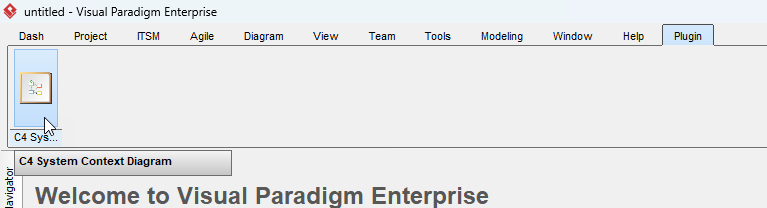
Trigger the C4 System Context Diagram plugin
Download Sample Plugin
You can click the link to download the sample plugin from GitHub.
Related Know-how |
Related Link |


Leave a Reply
Want to join the discussion?Feel free to contribute!